
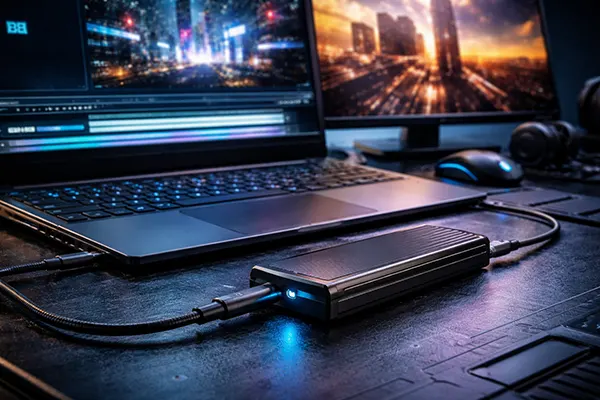
Thunderbolt 5 for gaming and creators: do 80Gbps external SSDs make sense in 2026?
Thunderbolt 5 finally makes “external storage that feels internal” a realistic goal, but only in the right setup. On paper you get 80Gbps bi-directional bandwidth and an optional 120Gbps mode aimed at display-heavy docks; in practice, what matters for an external SSD is how much PCIe throughput your laptop exposes, how good the enclosure controller is, and whether the drive can hold speed without cooking itself. This article treats Thunderbolt 5 as a tool, not a badge: we’ll run through gamer-friendly tests (installs, updates, moving libraries) and creator workloads (4K/8K caches and big project folders), then map the real limits and compatibility with Thunderbolt 3/4 and USB4 in 2026.
Test scenario 1: will a gamer actually feel Thunderbolt 5?
The most honest “gamer test” is not a synthetic benchmark, but time-to-play after a reinstall, a patch day, or a storage shuffle between machines. If you copy a 500GB game library from one NVMe to another, external storage speed matters a lot: at roughly 3.5GB/s sustained you’re looking at around 2.5 minutes for 500GB in ideal conditions, while a typical 1GB/s external SSD lands closer to 8–9 minutes. That’s the difference between grabbing a drink and coming back to a finished transfer versus checking progress twice. Thunderbolt 5 enclosures paired with a fast PCIe Gen4 NVMe can live in that 3–6GB/s band when everything aligns, so “moving the whole library” becomes something you do casually instead of overnight.
Game installs and updates are a different beast. Steam/Epic downloads are limited by your internet connection and the store’s servers, and then you hit CPU-bound decompression plus a sea of small file writes. In that workflow, even a very fast external SSD may look only slightly better than a decent internal drive, because the bottleneck moves away from pure throughput. The best case for Thunderbolt 5 here is when the download is already local (LAN cache, second PC, NAS-to-PC copy) or when you’re cloning an existing library rather than re-downloading it. In short: Thunderbolt 5 helps most when you already have the data and you’re trying to relocate it quickly.
Load times can improve, but expectations should be sober. Once a game is installed, many engines stream assets in bursts and then wait on CPU/GPU work; modern internal PCIe Gen4/Gen5 SSDs already make raw streaming fast enough that the gains from an even faster external path are often small. Where you may notice an external SSD is on open-world titles that constantly stream large textures, or on machines with limited internal storage where you’re forced to keep games on a slower drive. Even then, the stability of performance (no throttling, no hiccups) can matter more than peak GB/s.
What to measure at home (without lab gear)
Use a stopwatch, not just a benchmark number. Pick one large folder (100–300GB) that resembles a real game library: lots of mixed file sizes. Time a copy from internal NVMe to the external SSD and back. If the first copy is blazing fast but the second slows down, you’ve likely hit a cache/thermal limit in the drive or enclosure. For gamers, consistency is the win: you want predictable “I can move this tonight” behaviour, not a spectacular first minute followed by a crawl.
Watch CPU usage during installs and big patches. If your CPU is pegged while disk usage looks modest, the storage link is not the problem. That’s common on modern games with heavy compression. In that case, paying extra for the fastest Thunderbolt 5 enclosure may not change your “patch day” experience much, while putting that budget into a better CPU, more RAM, or a larger internal NVMe could have a bigger effect.
Check cable and port behaviour. A surprising number of “it’s slow” stories come down to plugging into the wrong USB-C port, using a charge-only cable, or falling back to a lower mode because of the dock/hub in the middle. In 2026 you should assume nothing: confirm your port supports Thunderbolt 5, connect the SSD directly, and only then judge results. Once you have a baseline, add your dock or monitor chain and see what changes.
Test scenario 2: creators and AI-PC workflows (4K/8K, caches, big projects)
Creators tend to feel external storage speed sooner than gamers because projects are often both huge and iterative. A single 4K timeline with proxies, cache files, and renders can generate hundreds of gigabytes of scratch data; 8K projects, high-bitrate RAW, and multi-cam work can grow into terabytes quickly. Here, Thunderbolt 5’s appeal is straightforward: if your external SSD can hold 3–6GB/s sustained, you can place active project folders and caches externally without turning every cache rebuild into a coffee break. That matters on thin-and-light laptops where internal storage is either limited or expensive to upgrade.
There’s also a practical portability angle. In 2026 many teams still pass projects around on external drives because it’s faster and simpler than moving terabytes over the internet. If a portable Thunderbolt 5 SSD can genuinely sustain above 6000MB/s in favourable conditions, moving a 1TB project can drop to a handful of minutes instead of half an hour. That changes habits: you stop trimming assets just to fit transfer windows, and you can keep a clean “project on the drive, laptop stays lean” workflow.
But creators hit the harsh limits faster too. Sustained writes create heat; small bus-powered enclosures can throttle if the controller or NVMe runs hot, and the speed drop can be dramatic. Also, your real working speed is often defined by the slowest piece in the chain: laptop PCIe tunnelling implementation, enclosure controller, NVMe behaviour under sustained load, file system overhead, and the application’s access pattern. Thunderbolt 5 makes the ceiling higher, but it doesn’t remove the need to pick the right enclosure and drive combination.
How to choose the right TB5 external SSD setup in 2026
Prioritise sustained performance over peak numbers. Marketing loves “up to” speeds; your footage doesn’t care. Look for independent tests that show long transfers (hundreds of GB) and sustained write curves, not just a quick 1GB run. If you can’t find good testing, pick a larger enclosure with better thermal mass or an external SSD known for consistent sustained writes rather than the absolute highest peak.
Match the NVMe generation to the enclosure realistically. A fast PCIe Gen5 NVMe may look attractive, but the external link and controller can cap the benefit; you can still gain from Gen5 drives’ better controllers and sustained behaviour, but don’t pay purely for headline sequential speeds you may never see externally. In many creator rigs, a strong Gen4 NVMe with proven thermals offers the best value and the fewest surprises inside an enclosure.
Think about your full desk chain: displays, docks, and storage share the same link budget. Thunderbolt 5 was designed to handle heavy display configurations and higher overall bandwidth, but if you run multiple high-resolution monitors through the same dock, storage can be affected depending on how the dock allocates resources. The simple rule is: if storage performance matters during editing, connect the SSD directly to the laptop’s Thunderbolt 5 port, and keep high-bandwidth displays on a separate port when possible.
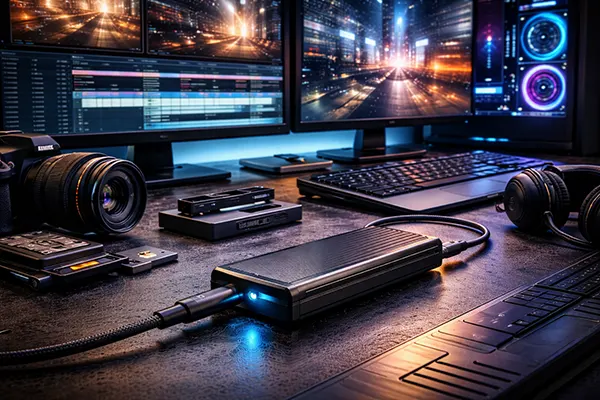
Compatibility in 2026: Thunderbolt 5 vs Thunderbolt 3/4 vs USB4
Backward compatibility is one of the main reasons Thunderbolt survived where other “fast connector” standards faded: in 2026, Thunderbolt 5 is designed to work with existing Thunderbolt devices and USB-C accessories, and many real-world setups are mixed. That’s good news for anyone upgrading one piece at a time. A Thunderbolt 5 laptop can still use a Thunderbolt 3 SSD enclosure, but you’ll be limited by the older link and controller. Likewise, a Thunderbolt 5 enclosure connected to a Thunderbolt 4 or USB4 port will typically fall back to what that host can provide.
The catch is that “USB-C” tells you almost nothing. USB4 can mean very different capabilities depending on the exact version and implementation, and plenty of products are marketed loosely as “USB4 compatible” while behaving like older designs in the ways that matter for storage. In 2026, the safest approach is to treat the connection as a negotiated contract: host + cable + enclosure controller decide the final mode. If you want predictable results, you need to verify the actual chipset/controller class and the real throughput people measure, not just the label on a product page.
Another real-world limit is PCIe tunnelling and overhead. Thunderbolt 5 increases potential PCIe throughput versus earlier generations, which is why fast external SSDs are now plausible, but you still won’t get the same behaviour as a direct internal M.2 slot. Protocol overhead, controller efficiency, and thermals all bite. That’s not a reason to avoid TB5; it’s a reason to frame expectations correctly: you’re buying “very fast external” and “very convenient”, not “identical to internal in every scenario”.
Practical buying advice: when TB5 external SSDs are worth it
It’s worth it if you repeatedly move big libraries or projects and your time has a clear value. If you are constantly shuffling 300GB–2TB between machines, a faster link is a straightforward quality-of-life upgrade. It’s also worth it if your laptop’s internal storage is small and you want a clean workflow where games or active projects live externally without feeling sluggish.
It’s not worth it if your main pain is downloads, not copies. If your bottleneck is internet speed, store servers, or CPU decompression, the external link won’t rescue you. In that case, the smarter spend is usually a larger internal NVMe, a better CPU, more RAM, or simply scheduling large downloads overnight while keeping projects on a sensible external drive.
Finally, budget for the whole chain. A Thunderbolt 5 SSD experience can be ruined by the wrong cable, a hot enclosure, or a host port that doesn’t actually deliver the mode you assumed. If you’re buying in 2026, buy one solid enclosure with good thermal design, pair it with a proven NVMe, and keep a known-good certified cable for direct connection. That approach beats chasing the biggest “up to” number and ending up with a fast drive that only performs on the first gigabyte.
Similar articles
-
 Nintendo Switch 2: What Has Actu...
The original Nintendo Switch has remained relevant for …
-
 Free Fire: How to Play Aggressiv...
Playing aggressively in Free Fire can win you …